

Setting Up JPetstore Application on Your Local System
Setting up Java environment variables on your local system:
- Download Java 8 from Oracle and install it on your machine.
- Configure environmental variables using the following steps:
- Copy the JDK path (e.g., <C:\Program Files\Java\jdk1.8.0_241>).
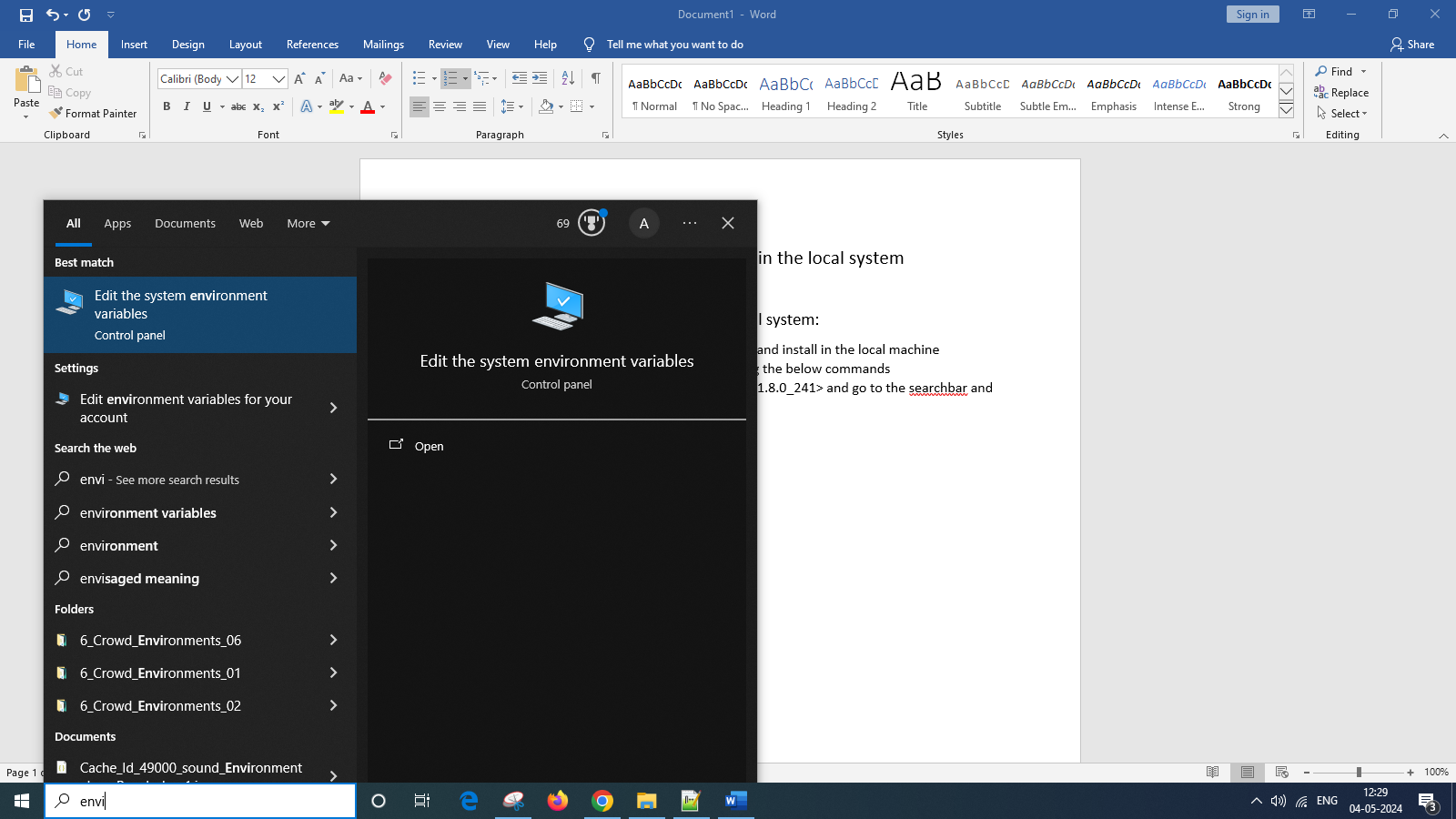
- Search for environment variable setup in the search bar.
- Proceed to set up the necessary variables.
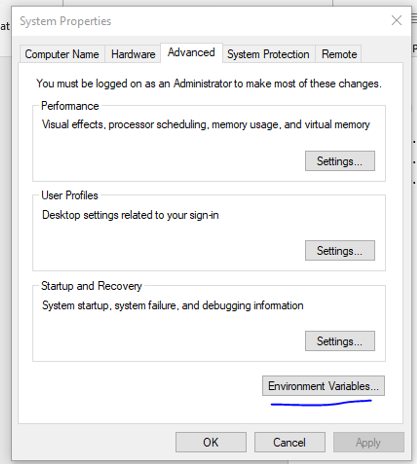
- Navigate to the “User variables” section and click on “New” to proceed

- In the “Variable name” field, enter “JAVA_HOME”, and in the “Variable value” field, provide the JDK path (<C:\Program Files\Java\jdk1.8.0_241>). Then, close the window.

- Next, in the “System variables” section, select “Path” and click “Edit”.
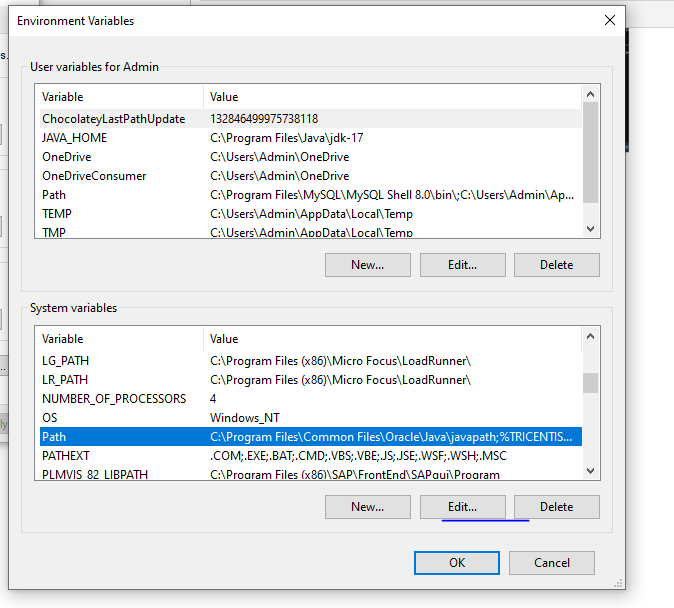
- Here, click on “New”.
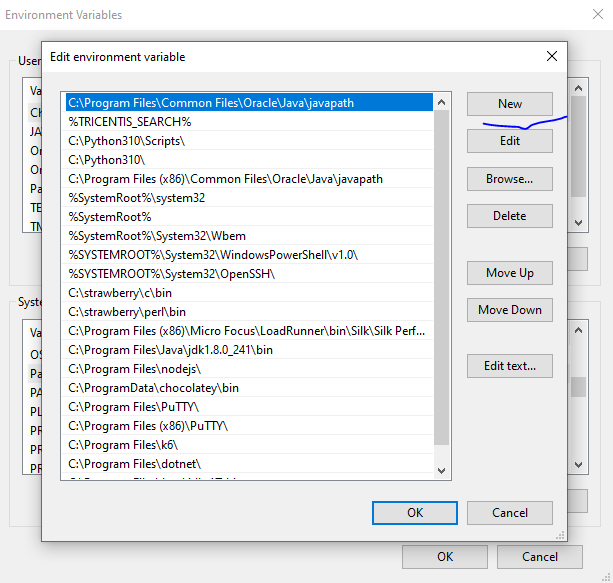
- Next, provide the path to the JDK bin folder (<C:\Program Files\Java\jdk1.8.0_241\bin>), then click “OK” and close the window.
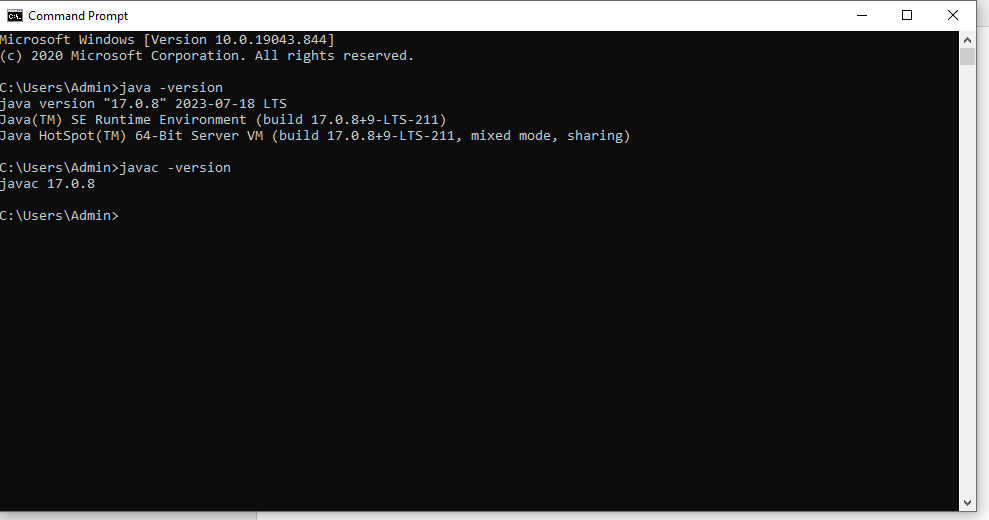
- To verify if the environment variables are correctly set up, use the following commands in the command prompt:
- java -version
- javac -version
Setting up the Tomcat server in the Local Machine:
- Download Apache Tomcat 9 from the official website
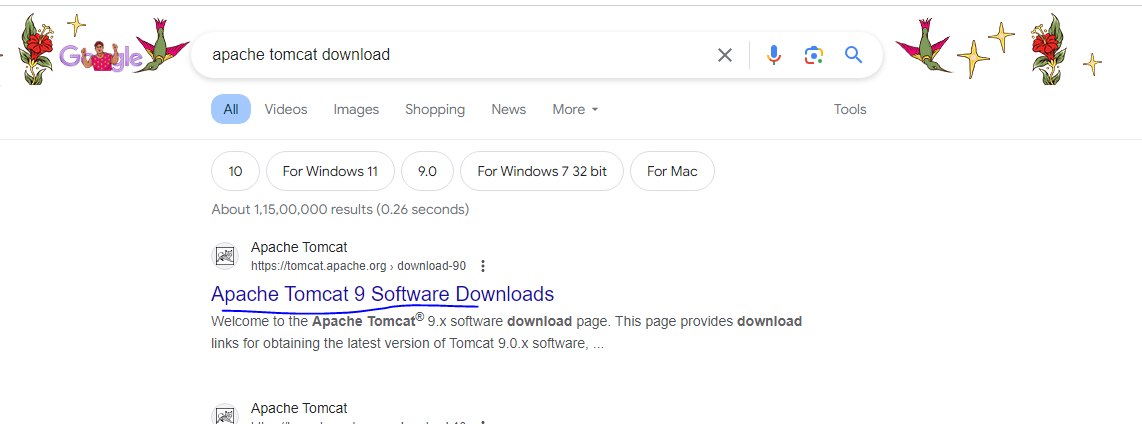
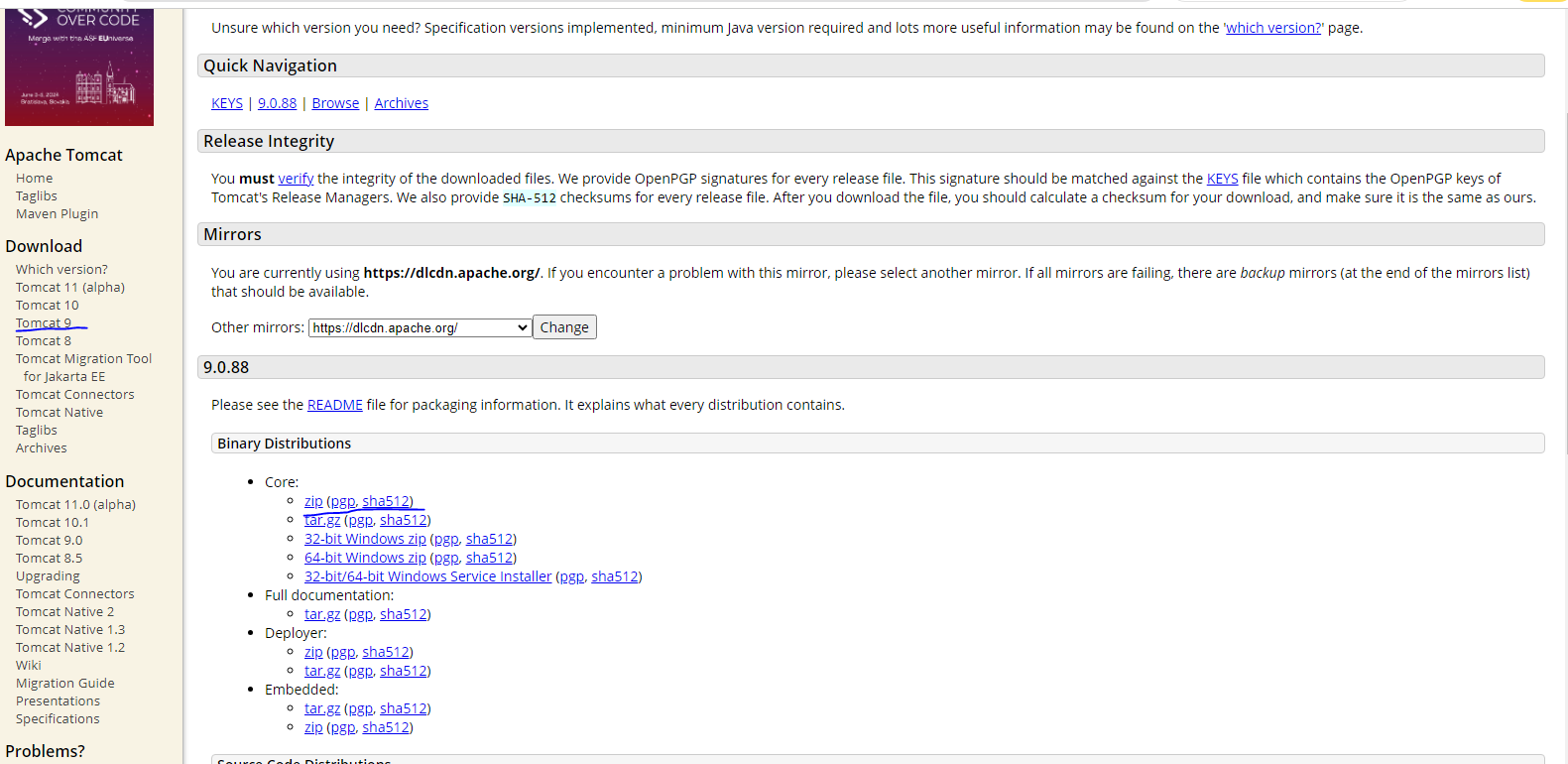
- Then zip folder will downloads, so you can unzip it in a separate folder
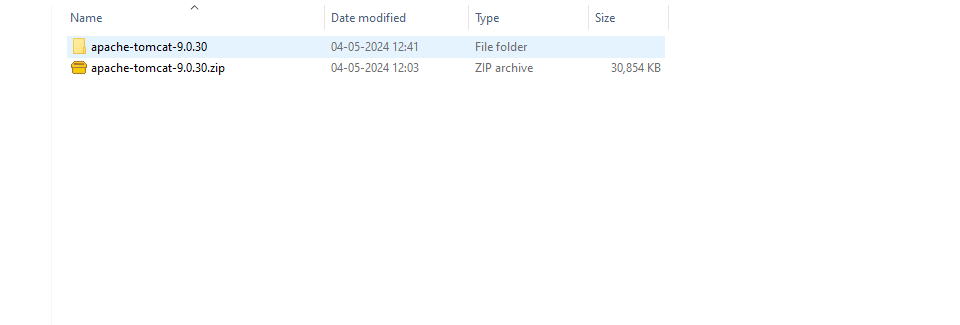
- After downloading, copy the path of the Tomcat’s bin folder. Then, open the command prompt and navigate to the Tomcat bin directory.
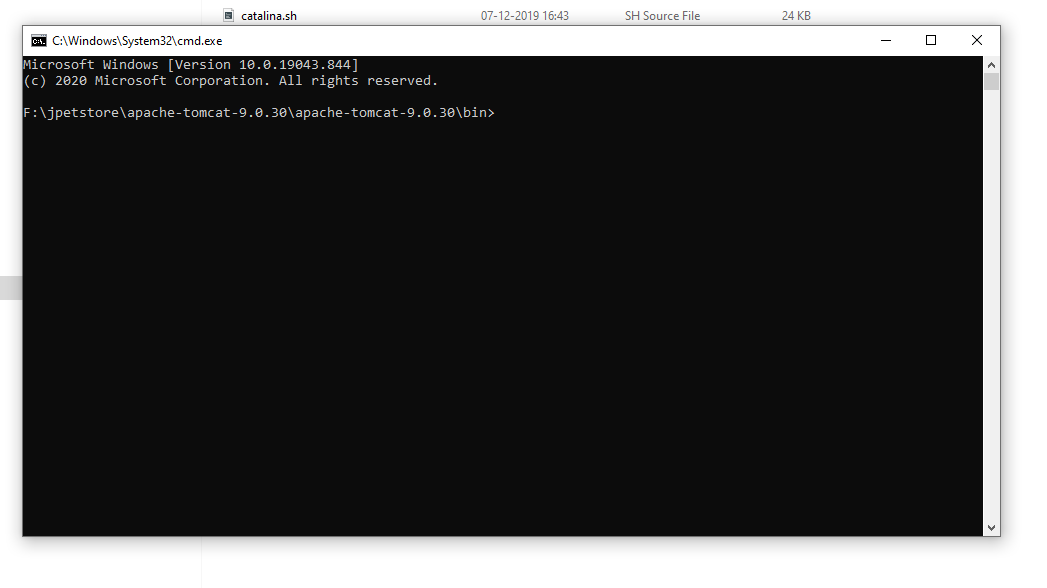
- Initiate the Tomcat server by executing the command “startup.bat”.

- Access the application in Chrome by entering “localhost:8080” in the address bar
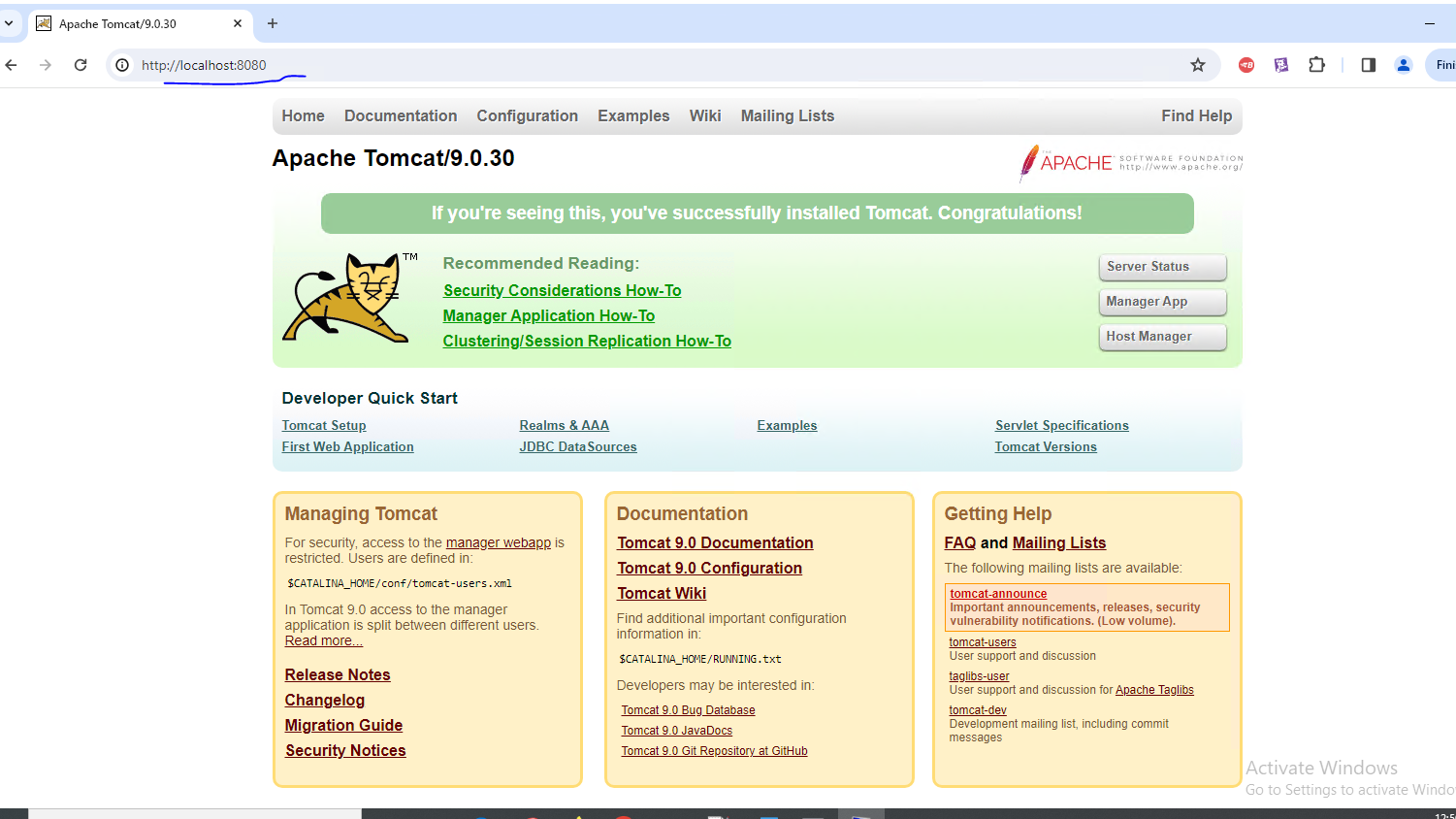
- Subsequently, click on the “Manager App” option.
- It will prompt you to enter the User ID and password. To set up the user and password, navigate to the “conf” folder in the Apache Tomcat unzip directory.
- Find the “tomcat-users.xml” file, right-click, and open it with Notepad. Enter the desired username and password.

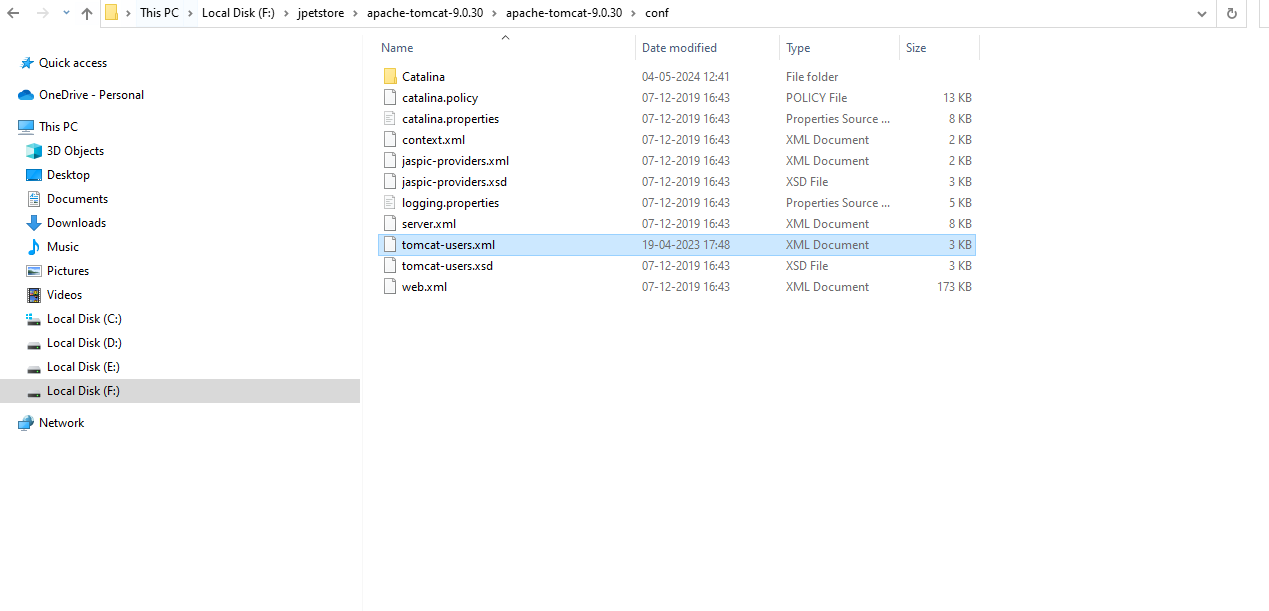
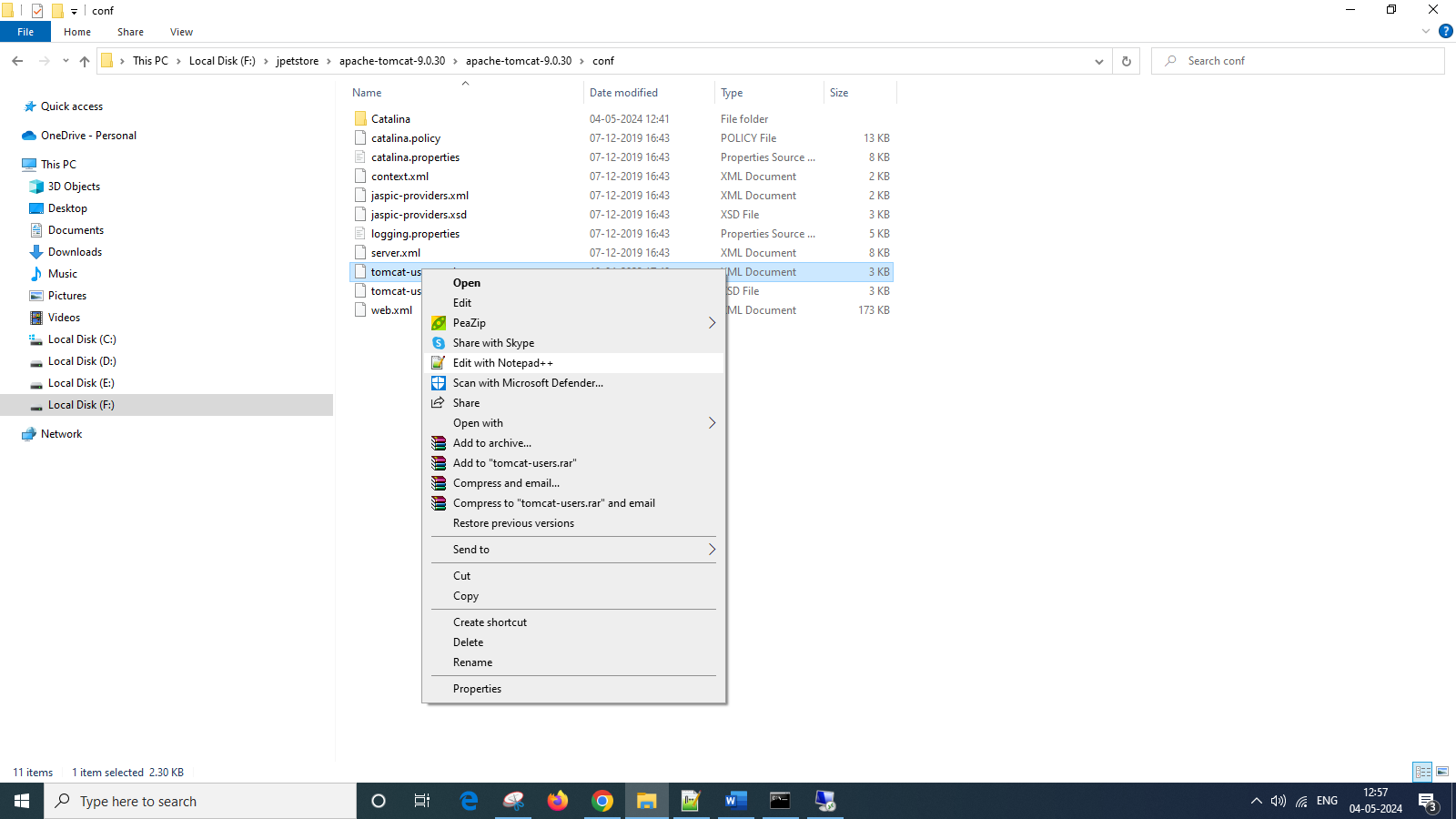
- Before making any changes to the username and password:
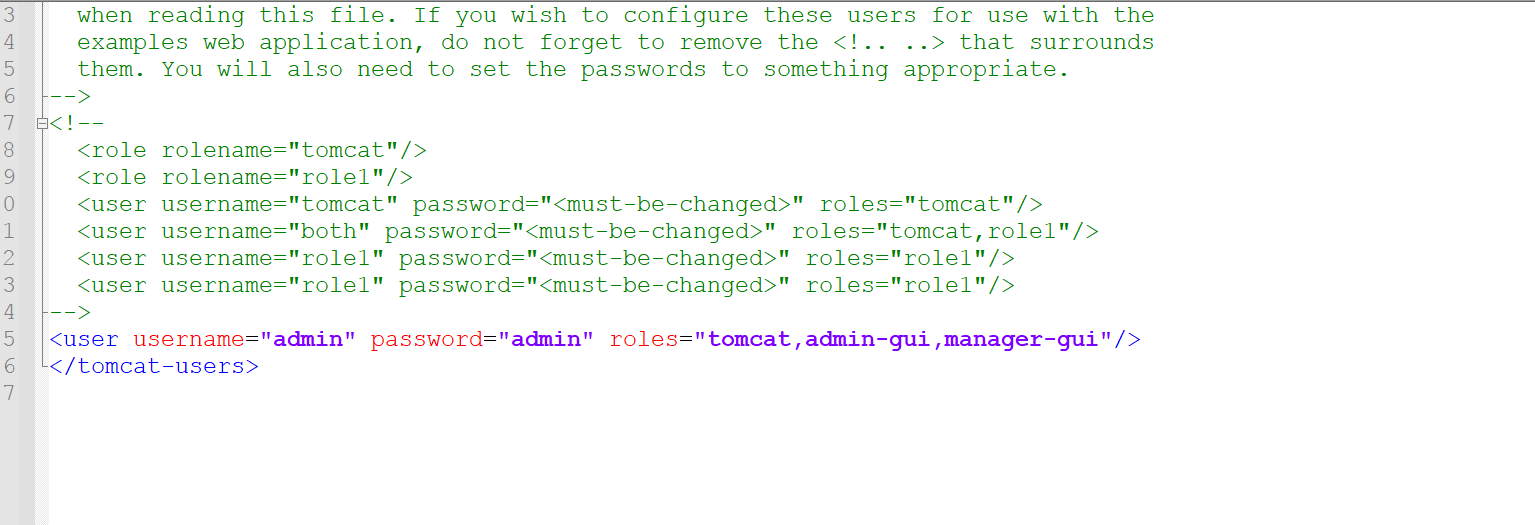
- After updating the username and password:

- Afterward, select the “Manager App” option. This will display the following screen
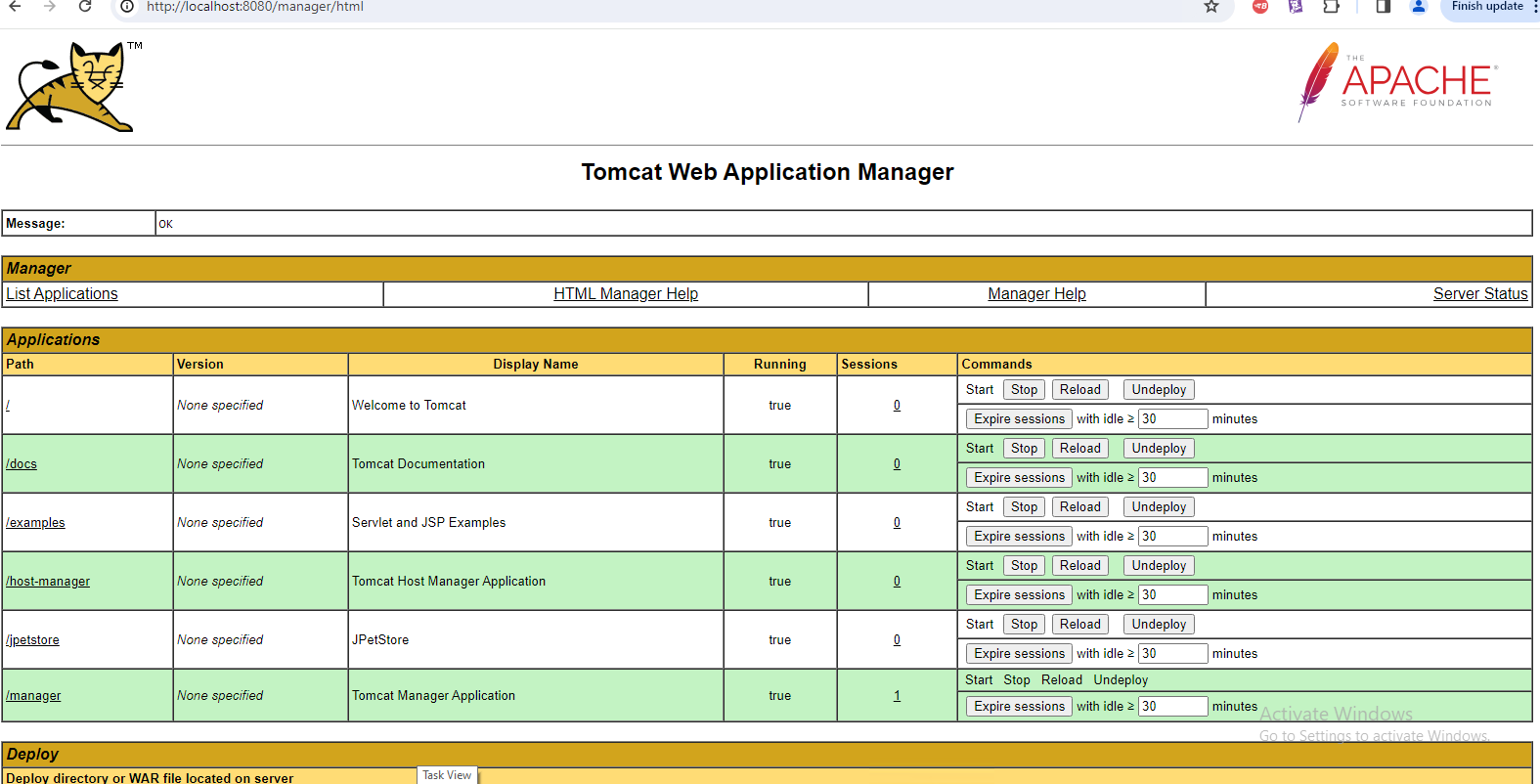
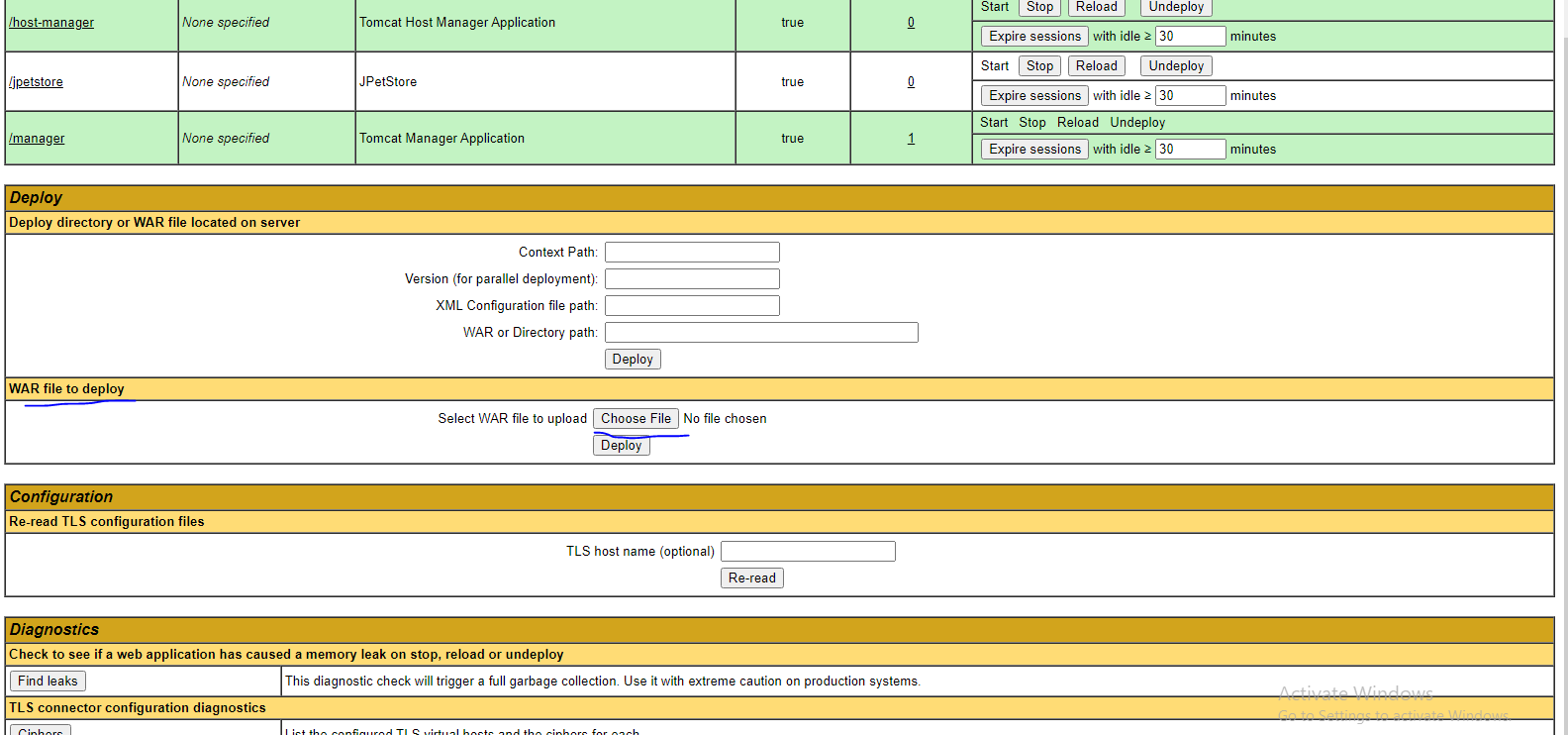
Then, proceed to the “Deploy War File” section and select “Deploy Your War File”. Choose your war file from your system and click on “Deploy”.
- Once the war file is deployed successfully, you will see JPetstore accessible at the specified version path.
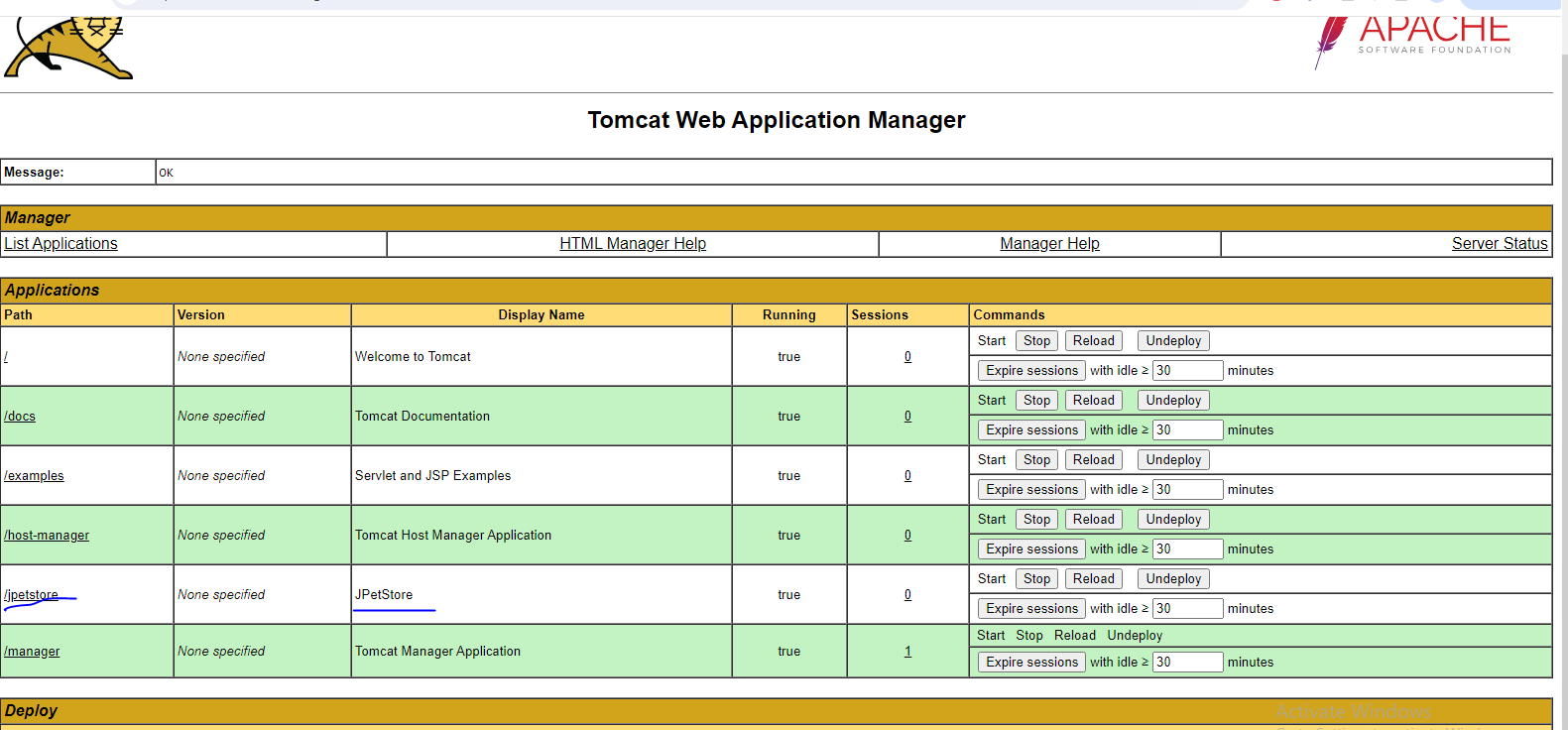
- Click on the JPetstore link displayed in the path. This will open the Petstore application in a new Chrome window.

- Click on “Enter the Store” and proceed to log in to the application using the following credentials: Username: j2ee Password: j2ee

You may also like

Observability and Monitoring – Same or Different?
March 23, 2023

Performance Engineering – JVM Heap Structure
March 15, 2023